


 By: RISA
New Features in RISACore v23.0.2 Release
RISA is pleased to announce the latest release of RISA-3D, RISAFloor, and...
When you transfer a model from RISA-3D into RISAFoundation, you expect the reactions and design assumptions to carry over cleanly so foundations design the way you intended.
If the workflow is not set up correctly, you can end up with soil bearing pressures, uplift, or foundation failures that don’t match what you saw in your RISA-3D results—and it’s not always obvious where the mismatch is coming from.
This article walks through how the integration actually works, what transfers and what doesn’t, and a simple checklist you can follow to get reliable foundation results.

RISAFoundation reads joint reactions organized by load category, not by load combination.
Those categories are defined in the Basic Load Cases spreadsheet in RISA-3D (DL, LL, WL, etc.).
What comes across:
What does not come across:
Model Settings come over only the first time you transfer. If you later change something in Model Settings that affects foundations, you’ll need to update it on the RISAFoundation side as well.
If a basic load case doesn’t have a load category, its reactions will not transfer at all.
That’s one of the most common reasons for “missing” loads in RISAFoundation.
Before transferring:
You also need to solve at least one single load combination before using the Director to move to RISAFoundation. That’s what generates the reactions that get grouped by category.
Next, look at how supports and axes are defined in the RISA-3D model.
It’s worth doing a quick visual check in RISA-3D to confirm that the supports you expect to see in RISAFoundation are defined correctly and located where you intend.
Once the model is solved and set up, use Director → RISAFoundation.
In RISAFoundation:
A good habit is to pick a few critical supports, compare the reactions in RISA-3D to the loads you see in RISAFoundation for the same category, and confirm they match within rounding.
RISAFoundation does not import load combinations from RISA-3D.
Instead, it takes the category-based reactions (DL, LL, WL, etc.) and applies its own combinations.
You’ll need to:
If foundation behavior doesn’t match what you expect, double-check that the combinations you built in RISAFoundation truly mirror the final set you used for superstructure design.
If supports exist at multiple elevations (partial basements, podiums, adjacent structures), RISAFoundation will prompt you when you transfer:
All elevations are mapped to a single plan elevation in RISAFoundation for design, so it’s important to think about how you want to represent stepped foundations or partial basements.
For routine building projects, the category-based reactions are usually sufficient. For heavily non-linear or stability-critical systems, supplement the automatic transfer with targeted hand checks or additional manual load cases for critical foundations.
RISA is pleased to announce the latest release of RISA-3D, RISAFloor, and...
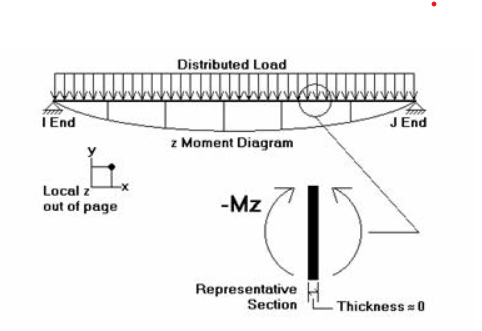
RISA software products use different sign conventions depending on the...
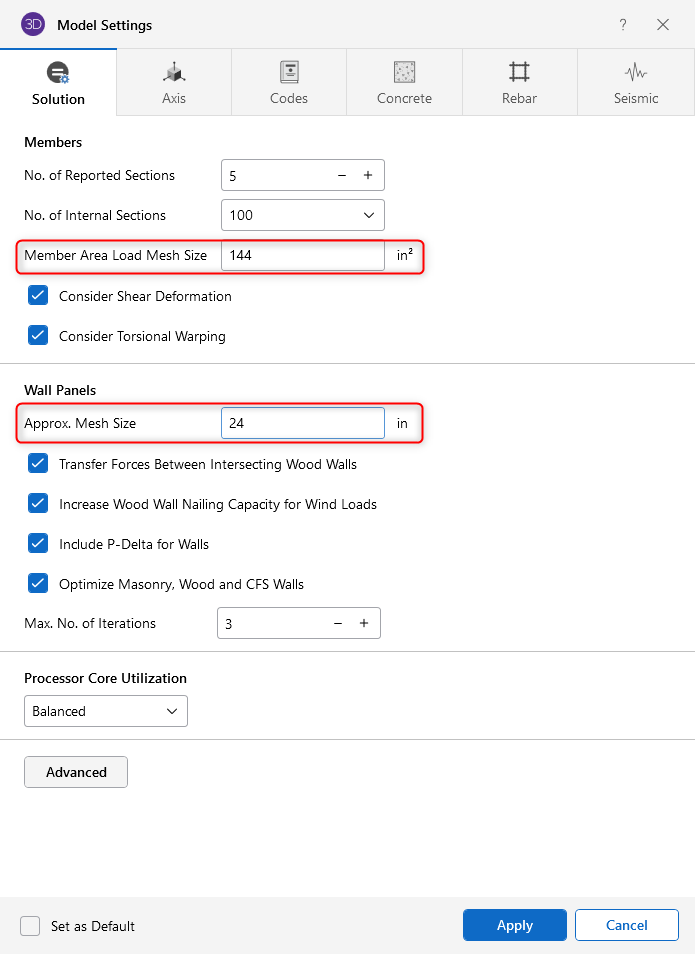
Is your RISA-3D software solution running slower than you expected?...