


 By: RISA


How to Define Steel Connections in RISAFloor & RISA-3D
One of the advantages of the RISA Building System is the ability to...
No engineer wants to receive an error message when moving through their design. It slows the progress, creates uncertainty, and adds unnecessary rework. RISA’s integration is designed to eliminate this frustration and transition from member design to connection design seamlessly!
Key Takeaways:
Assign connection type to branch member of connection
If you’re new to using this integration, start with the article below to learn the typical workflow.
Still not sure why your connection isn’t transferring? Below are the most common causes of failed transfers and how to quickly fix them.
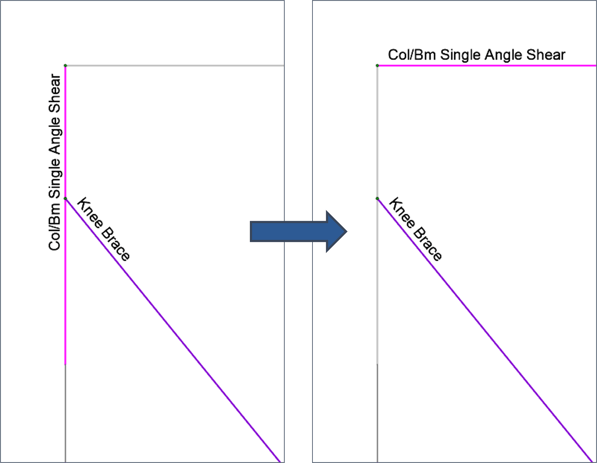
Reason: RISAConnection expects the connections to be assigned to specific members within the connection based on the geometry and type. Unsupported connections will not transfer from RISA-3D.
Fix: Assign connection type to the branch member.
Example: For beam-to-column connections, assign the connection to the beam end only. The column does not need a connection type assigned.
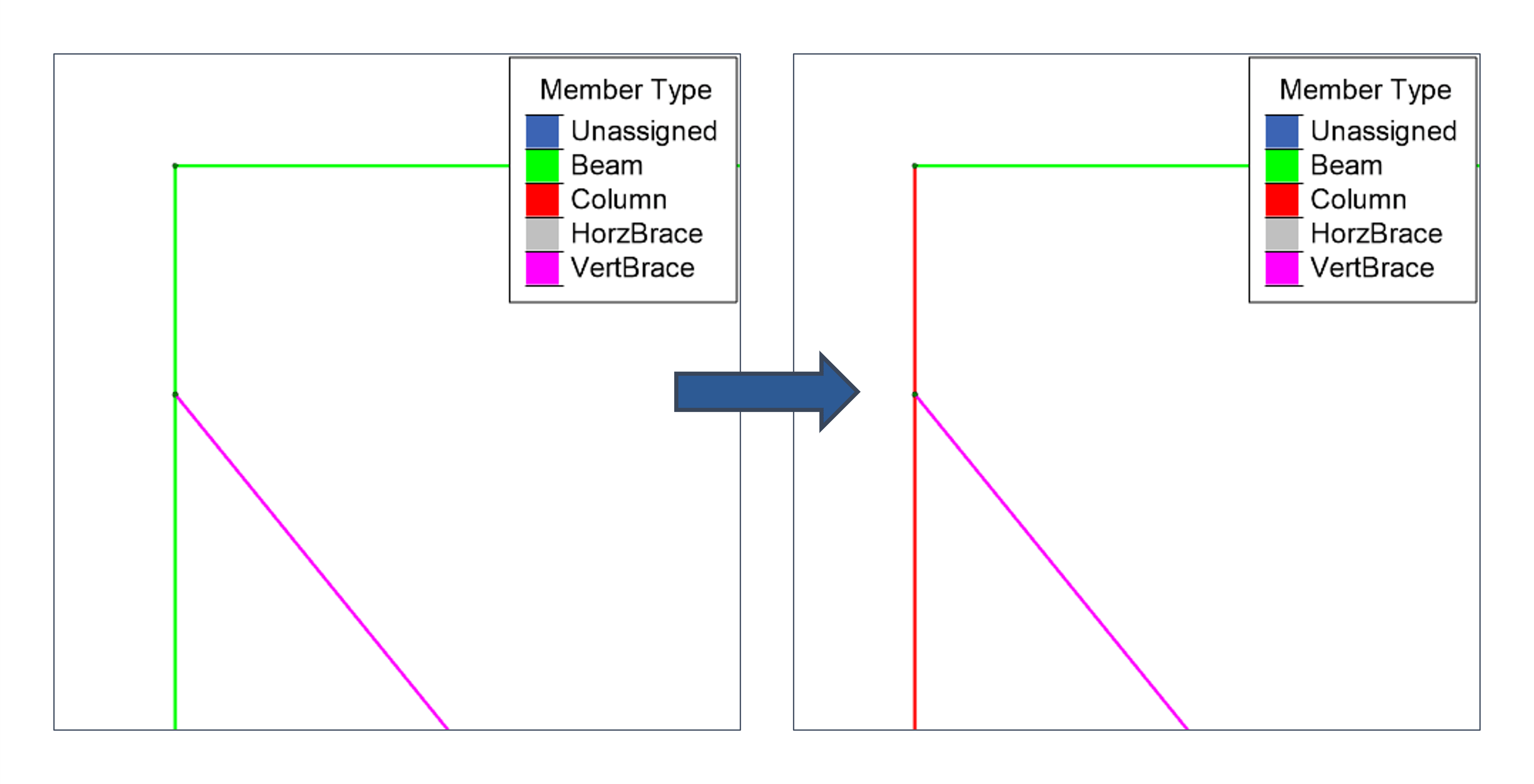
Reason: Members in RISA-3D are assigned a “Member Type” which helps determine whether a connection is valid at the assigned location.
Fix: Verify that all members in the connection have the correct member type assigned.
Example: If a vertical member is incorrectly defined as a “beam” member type, the beam-to-column connection will be invalid. Update the vertical member type to “column” to successfully export the connection.
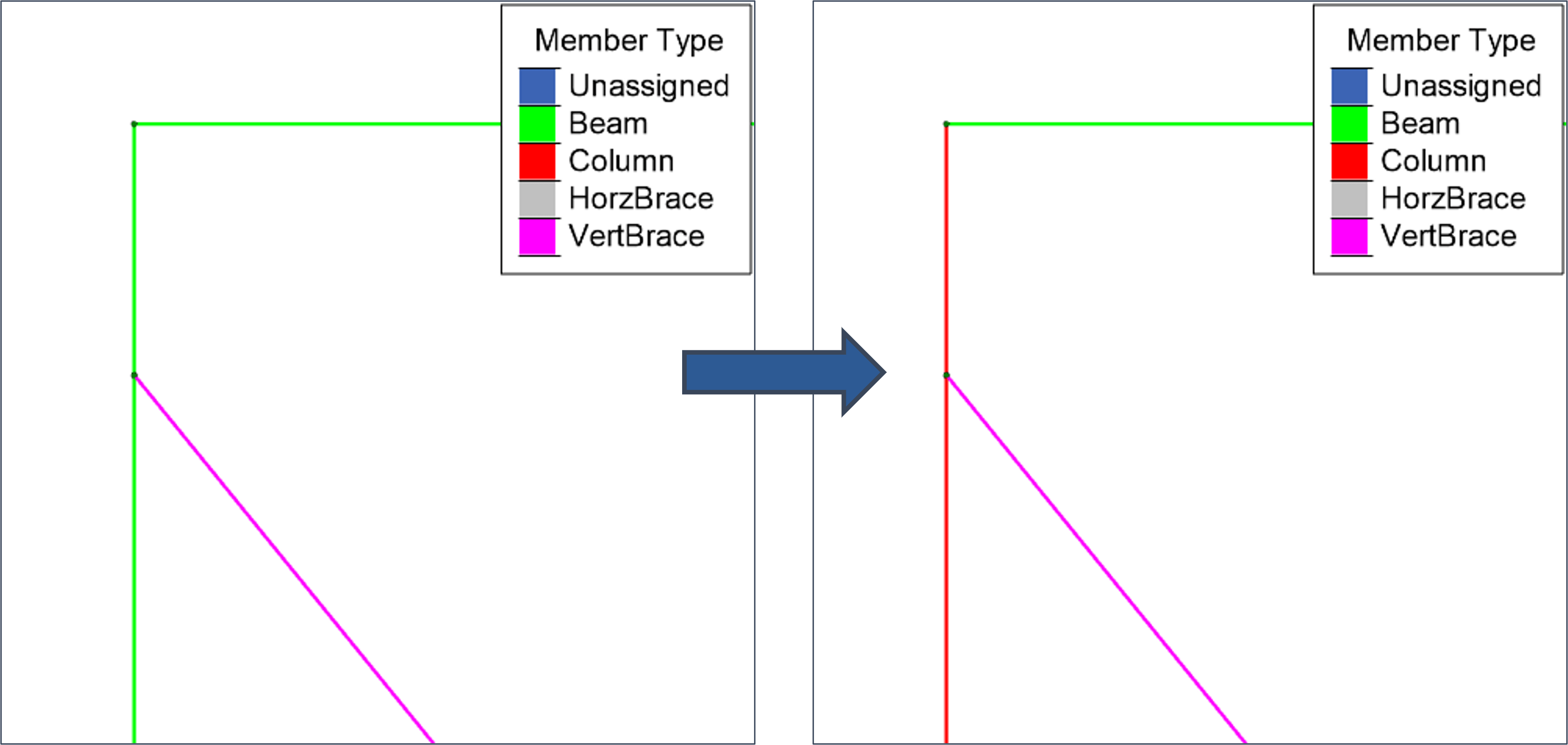
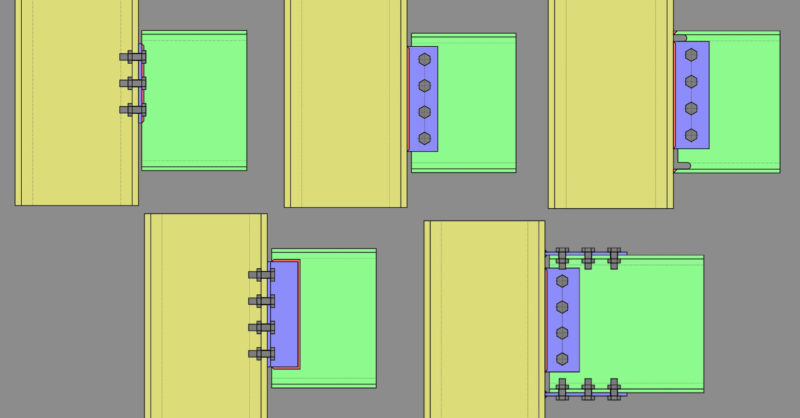
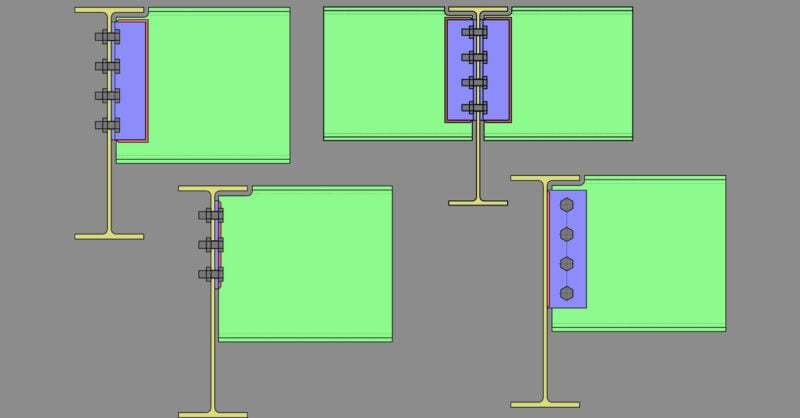
Reason: RISAConnection supports 30+ connection types each with their own geometry and design assumptions. Not all configurations are compatible with the included connection types.
Fix: Confirm member shape and geometry align with the requirements of the selected connection. You can learn more about the connection details through the resources below:
Check out the RISAConnection Help File for all the details on the assumptions and limitations of each connection type.
Open a standalone RISAConnection file. Select a specific connection type to quickly visualize the allowable geometry and member types.
Review the articles below for more information on defining these connections.
Example: Wide flange braces are not supported for knee brace connections. In order to use this connection, select a different shape type for the brace.
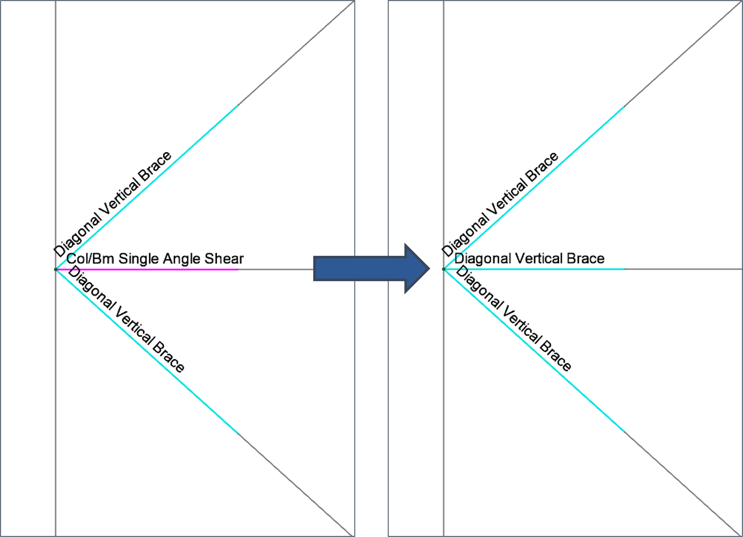
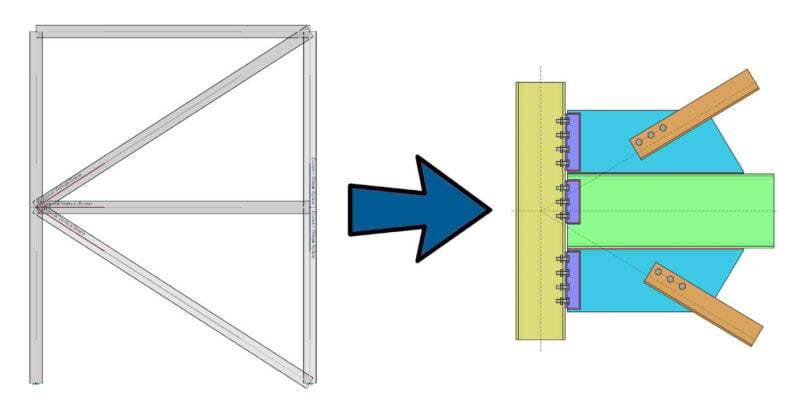
Reason: Several brace connection types can accommodate multiple members in RISAConnection. For connection types with multiple members, the program will look for all the members at a specific node to be assigned with the same connection type.
Fix: Update the connection type to be the same for each member framing into a node. Confirm with the connection type in RISAConnection that the selected connection is compatible with multiple brace members and beam members.
Example: The “Diagonal Vertical Brace” connection can include up to two brace members (top and bottom) and a beam member. All 3 members in RISA-3D should be assigned to this connection type for it to be properly pulled into RISAConnection.
By aligning member types, geometry, and connection assignments early in the workflow, RISA provides flawless integration to reduce errors, save time, and design confidently.

One of the advantages of the RISA Building System is the ability to...
Member Configuration The connection rule must be applied at the end of...
Member Configuration The connection rule must be applied at the end of...